
Desktop tester
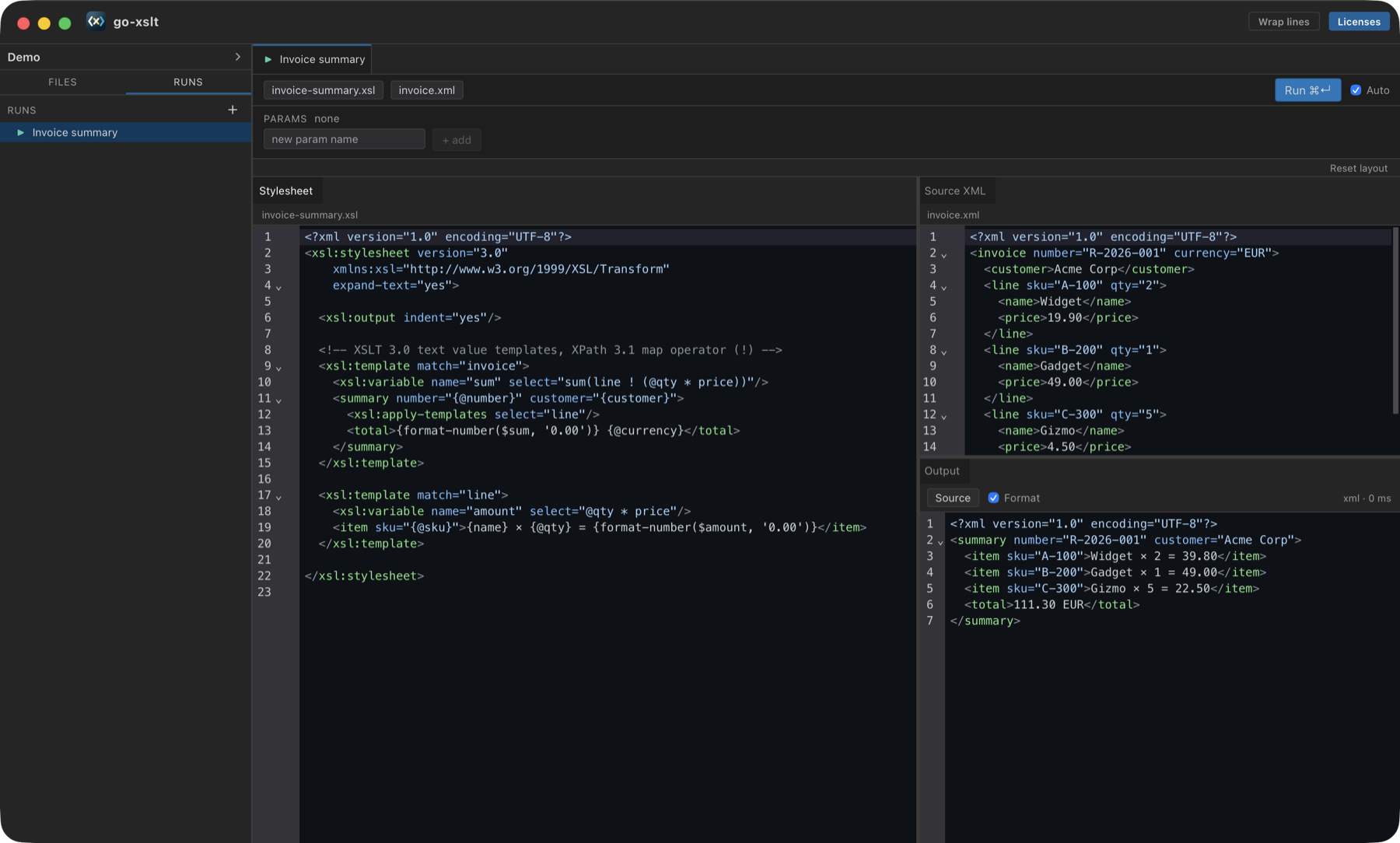
The desktop tester is an app for writing and trying out stylesheets, schemas and XPath expressions. It runs on the same engine as the library and works offline; its only network request is the optional update check.
Download
Builds for macOS (Apple Silicon and Intel), Windows (x64 and ARM64) and Linux (x64) are attached to every release on GitHub. The macOS apps are signed with an Apple Developer ID and notarized; the Windows executables are signed with a Certum Open Source Code Signing certificate.
Projects
A project is an ordinary folder on disk. New projects are created under ~/Documents/go-xslt; any existing folder can also be opened as a project. The sidebar shows its files, and you can create, rename and delete files and folders there.
A project also holds saved runs, kept in the file goxslt.project.json in the project folder. A saved run is a named, reusable configuration:
| Run | Holds |
|---|---|
| Transform | Stylesheet, source document, parameters |
| Validate | Instance document and an ordered list of schema files |
| XPath | Expression and context document |
Transform
Edit the stylesheet and the source next to the live output. The editor highlights XSLT and XML and marks the engine's diagnostics in the gutter. Messages from xsl:message and the documents from xsl:result-document appear in their own panes.
Three switches next to the file pickers turn on the optional XSLT 3.0 features for the run; they are saved with it:
| Switch | Effect |
|---|---|
| Schema-aware | xsl:import-schema, validation and typed nodes. Off: xsl:import-schema is an error. |
| XSLT 1.0 mode | XSLT 1.0 rules where version is below 2.0. Off: a version="1.0" stylesheet runs under XSLT 3.0 rules. |
| Strict streaming | A construct declared streamable that cannot be proven streamable is XTSE3430. Off: it runs with the whole document in memory. |
See Optional features.
Validate
Validate an instance document against one or more schemas, in XSD 1.0 or 1.1. Every error is listed with its position; a click jumps to it.
XPath
Evaluate an XPath 3.1 expression against a document. The result is shown as a table with one row per item and its type.
Schema structure
An .xsd file can be shown as Code or as Structure. The structure view shows the elements and types of the schema as a tree, with the cardinality of every element, group and wildcard. Types are expanded on demand, so large schemas stay fast.
Layout
Every pane can be moved: drag its tab next to, above or below another pane, or onto it to stack them as tabs. The layout is remembered per view. Reset layout restores the default.
File access
Each run may read the files of its own project folder. Network access is off.
Settings
The settings button at the right end of the toolbar opens three settings:
- Appearance: System follows the light or dark mode of your computer, also when it changes while the app runs; Light and Dark fix one.
- Language: one of twenty-eight — English, German, French, Italian, Indonesian, Czech, Danish, Spanish, Hungarian, Dutch, Norwegian (Bokmål), Polish, Portuguese (Brazil), Romanian, Finnish, Swedish, Vietnamese, Turkish, Greek, Russian, Ukrainian, Hebrew, Arabic, Hindi, Japanese, Chinese (Simplified and Traditional) and Korean, each listed in its own name. System uses the first of your computer's preferred languages the app offers (a regional variant counts for its language; Chinese for Taiwan, Hong Kong or Macau is Traditional, any other Chinese Simplified; Nynorsk falls back to Bokmål), and English otherwise. Arabic and Hebrew lay the app out right to left; code editors and the output stay left to right. Only the language in use is loaded. Messages from the engine itself (errors with W3C codes) stay in English; failed XSD assertions show their
msg:messagein the chosen language when the schema has one. - Check for updates: on by default, see below.
Update check
At start, and every six hours while it runs, the app asks GitHub whether a release newer than the installed one exists. If so, a dialog shows what is new in it, with three choices: Download opens the release page, Later shows the dialog again at the next start, and Skip this version keeps it closed until the release after. The Update button in the toolbar opens the dialog again at any time. Links in the notes open in your browser.
The request goes to api.github.com and sends nothing but the app version in its user agent. Switch it off in the settings.
Building from source
The app is the separate Go module in desktop/. You need Go 1.25 or newer, Node 20 or newer, and the Wails v3 CLI:
go install github.com/wailsapp/wails/v3/cmd/wails3@latestRun these from desktop/:
make dev          # live development
make build        # build for the current platform
make build-mac    # macOS, Apple Silicon and Intel
make build-win    # Windows, x64 and ARM64
make build-linux  # Linux x64 through Docker (run make setup-docker once)
make build-all    # all of the above
The results are in desktop/build/bin/.